
GHOSTFACE · FREE OPTIONS
Can You Make a Ghostface AI Video for Free?
Prepare your phone-call scene before spending credits. Separate free photo preparation from generation and download terms, then check the offer for the result you want.
By Burning Bridges AI Video · Updated
Which Ghostface steps are free to prepare?
Watching the references, choosing or replacing a photo, and reading the preparation guide are free. Before generating a video, review the selected option’s credit requirement and the conditions for saving the finished clip.
Can you make a Ghostface video for free?
For a free Ghostface AI video, check that the offer covers a moving phone-call scene and lets you save the result. Review the allowance, watermark and download terms together. You can watch the references and prepare your portrait here for free.
Watching the Ghostface references and previewing your photos here are also free. Those activities do not produce a new moving clip. For the scene itself, start with the Ghostface explanation.
Preparation, generation and download: what to check
| Stage | What you can do | What to check |
|---|---|---|
| Watch the references | Free to watch on the topic page. | Caller: keep the face recognizable while the phone is raised. |
| Prepare a photo | Choose, replace or remove one image for free. | Use one sharp portrait with visible eyes. Keep hands away from the face so the phone pose and expression are easy to inspect. |
| Generate the scene | Review the selected option and its credit requirement. | Check the scene, accepted inputs, output settings and any trial conditions. |
| Download the video | Review the export terms attached to the offer. | Check full length, resolution, watermark and file access. |
| Add audio and share | Choose audio you have permission to publish. | Check the music and the posting platform’s audio options. |
Use the current plan and checkout details for the amount due. If a trial is offered, check that it covers both the selected video and the export you need. Review current credit plans →
Shoot a simple phone-call suspense scene
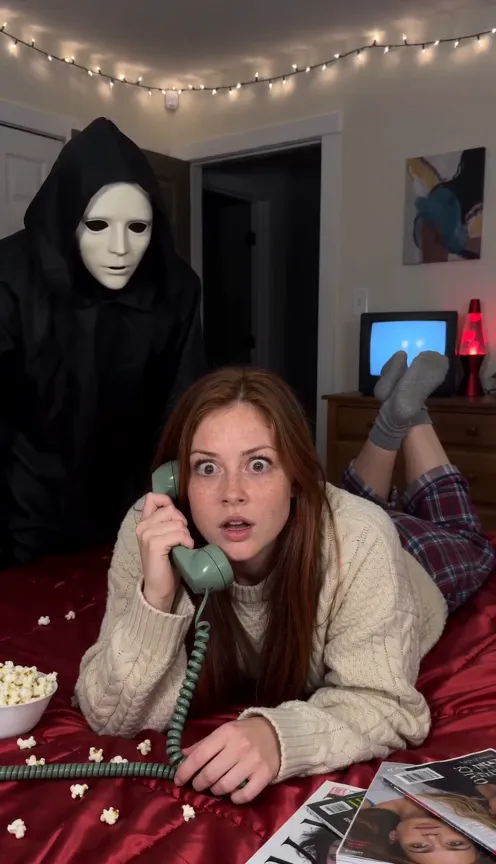
Plan the caller in the foreground and an empty doorway behind. Use willing participants and clearly staged props; the effect does not require an actual threat.
Record a normal phone-call pose, then a separate take with a background silhouette or harmless costume. Keep the camera fixed for easier matching.
Cut between the takes in a free editor, letting the viewer notice the background before the caller reacts.
Add permitted sound if desired and check the sequence with the volume off. The doorway and reaction should still explain what changed.
For editing, Shotcut and Kdenlive are free, open-source options according to their official sites. They edit your media; that does not imply a built-in Ghostface AI effect.
A simpler still-image alternative
Use two original stills with matching framing: an empty doorway and a staged silhouette. A slow crop followed by a clean cut can make a simple horror-photo sequence. Do not describe that as continuous generated acting.
Before you rely on an AI trial
Check the current offer on the provider’s own site before uploading. Free account creation does not establish a free video render, and a free preview does not establish a downloadable result.
- Does the allowance cover video, or only images?
- Does it accept the number and type of references this scene needs?
- Is export included, and at what length, resolution and watermark level?
- Is a payment card or recurring plan required?
- What happens to credits after a failed or unusable draft?
Choose one clear portrait with visible eyes and an unobstructed face. Avoid holding a phone in front of the cheek in the input photo; the composed scene can place the prop later. Leave enough shoulder information to support the foreground pose.
If the inputs do not match the offer, the trial is not a useful test of this particular scene. We have not tested an external free render or download for this guide.
Prepare your phone-call scene here
Watch the Ghostface references, then choose your photo. Selecting a photo previews it on this device; that selection does not upload it or spend credits.
Follow the receiver and fingers during the call, keep the caller’s face clear, and check that the masked figure stays separate from the foreground person. Follow the four-step preparation route, then review the current credit plans when you are ready to continue.
Choose the route that fits your idea
Film the scene when you can control a room and doorway. For AI, test the phone and foreground face first, then add the background role. A shorter, clearer reveal usually gives you more to evaluate than a busy scene full of simultaneous effects.
Reviewed October 22, 2026. Editor availability was checked on the official Shotcut and Kdenlive sites. Visual references and their credits are linked above; no external AI offer was purchased or tested.
Frequently asked questions
Does a good portrait guarantee a realistic phone-holding pose?
No. A clear portrait helps define the face, but fingers, props and background roles still need to be checked in the resulting frames.
Does a free trial guarantee a free download?
No. Rendering, previews and exports can have different conditions. Check the current offer before uploading or entering payment details.
What can I prepare on the Ghostface page for free?
You can watch the references and choose, replace or remove a photo without paying. Review the selected creation option and its current credit and export terms before generating a video.