
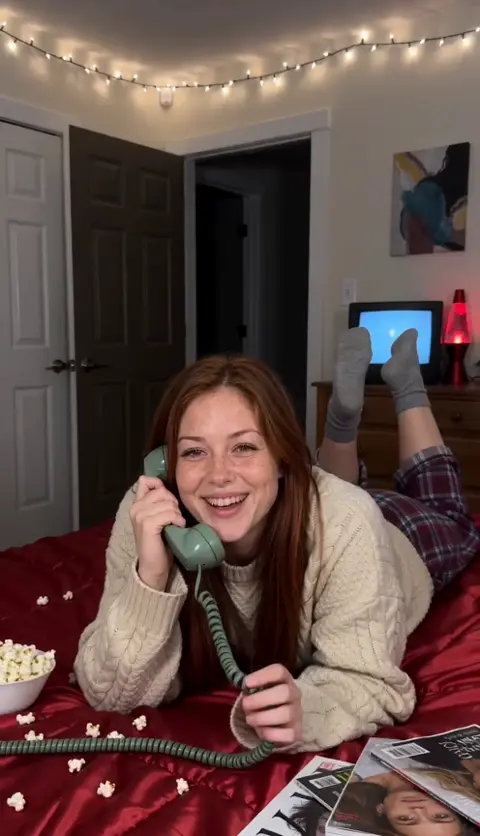
 01
A familiar room
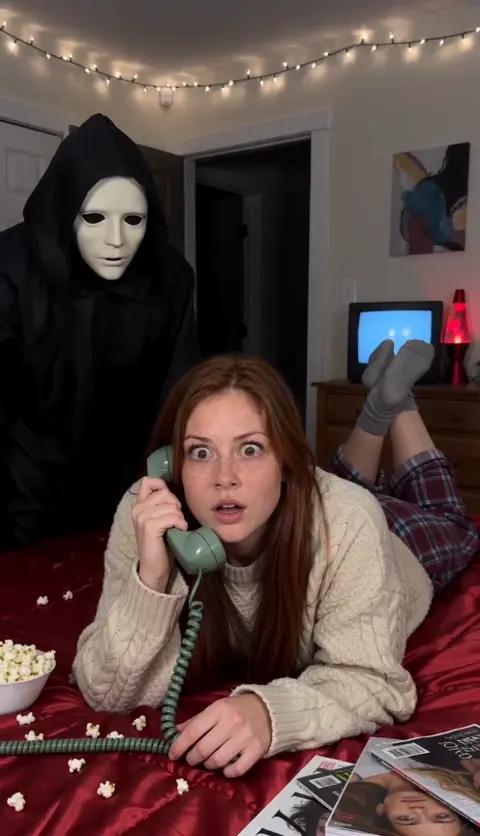
A retro bedroom and corded phone set up the scene.
Use one sharp portrait with visible eyes. Keep hands away from the face so the phone pose and expression are easy to inspect.
Choose a photo to preview it here. It stays on this device.
Your Ghostface video idea
Caller: keep the face recognizable while the phone is raised. Background: leave a readable space for the masked figure.
Generate videoCheck video options on Pricing before buying.
Two takes on the call
Watch both clips with the player controls. Sound is optional.
Inside the reference
01A retro bedroom and corded phone set up the scene.
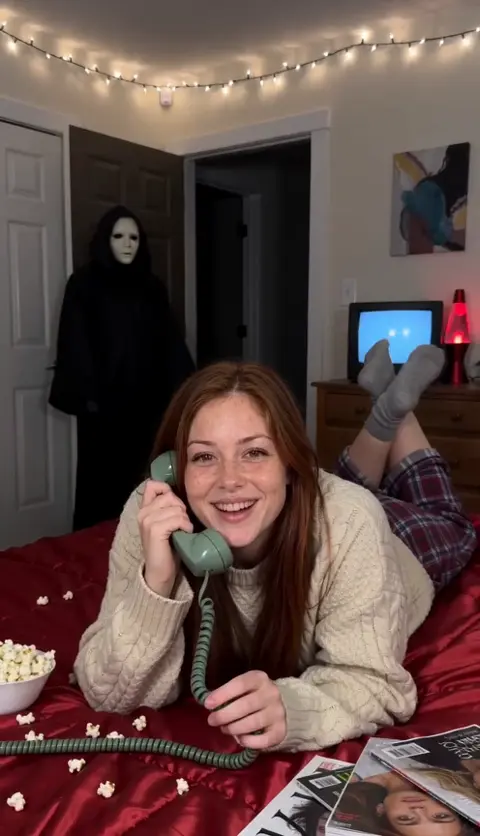 02
The masked figure appears beyond the bedroom.
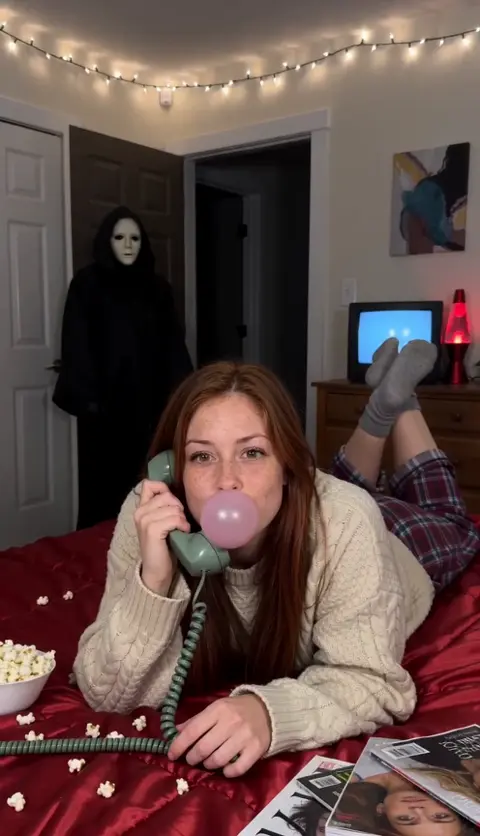 03
A pink bubble gives the sequence a brief, light moment.
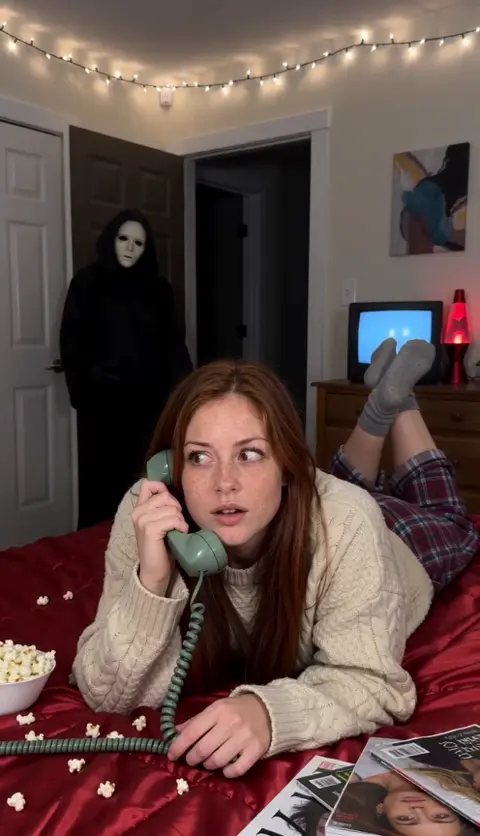 04
The expression changes as the call loses its easy rhythm.
 05
The figure moves into the foreground for the scare.
Step-by-step guide
Learn how to prepare an opening image, write a motion prompt and check the final reveal.
Read the Ghostface AI video tutorial →Plan your next video
Pause the reference to see how much room the face has. Compare the opening composition with the final close-up.
Use the local selector to inspect a portrait. You can change it or remove it at any time.
Choose your portrait →Check the selected scene, photo requirements, output and credit details before continuing. Review the whole result before saving it.
View Burning Bridges plansPortrait checklist
A local portrait preview only displays your selected image. It does not test face replacement, render movement or confirm how a generator will handle that photo.
Common questions
It is a horror-themed phone-call scene featuring a person in a retro bedroom and a masked figure. The references on this page show two versions of the idea.
Choose one JPG, PNG or WebP image up to 10 MB. The preview checks the file format and whether your browser can open the image.
No soundtrack is promised by this reference page. Listen using the player controls, and check video options and terms on Pricing before buying.
Follow the receiver and fingers during the call, keep the caller’s face clear, and check that the masked figure stays separate from the foreground person.
Your next scene
More cinematic references: Flying Entrance →Zombie Love Story →