
BULIN 47 · HOW TO
How to Make a Bulin 47 AI Video
Plan a Bulin 47 freestyle video: choose a clear portrait, frame the speaker and crowd, describe hand gestures, and check faces and movement in a draft.
By Burning Bridges AI Video · Updated
1. Choose the result and workflow
Start here: Choose a dedicated freestyle effect when its complete sample matches the performance you want. For a custom interpretation, compose your own street scene and animate a short gesture. A motion-guided workflow is useful only if the chosen service accepts reference footage and you have permission to supply it.
Explore what the Bulin 47 AI trend is, Bulin 47 page, then choose clear photos for your video.
2. Prepare the photo inputs
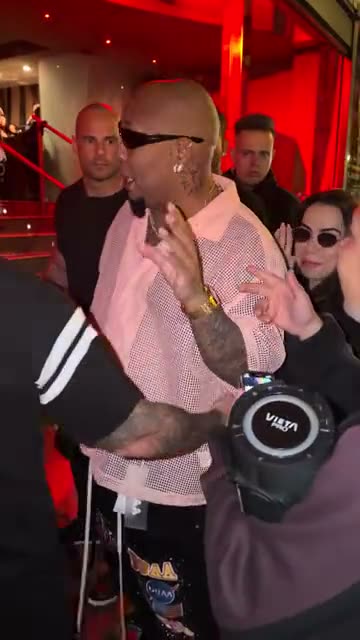
Choose one sharp, front-facing portrait with the hairline, eyes and shoulders visible. Keep hands away from the face. If you want a full-body restaging rather than a face-led effect, include the outfit and leave space for gestures.
Open the local photo preparation area to inspect the selected files. Follow the format and size rules printed beside its inputs. Then check the requirements of your chosen creation tool separately; they may differ.
3. Plan a short sequence
Establish the setting
Place the performer beside the speaker, with enough room for the upper body. Keep the audience behind or beside the lead instead of covering the face.
Follow the gestures
Plan one short head or hand movement that reads clearly. The camera should follow the performer without losing the speaker as a spatial reference.
Hold the ending
Leave a brief reaction or final pose after the main gesture. Cutting too early can make the performance feel like an unfinished test.
Use these as separate composition checks. A service with multi-shot controls may accept them together; otherwise, test a short shot first and join usable clips in an editor. Do not assume a single upload supports every camera change.
4. Adapt an original starting prompt
For a compatible image-to-video tool, this is a starting idea rather than a tested preset or a guarantee of the reference choreography. Keep only the actions your selected model can handle.
Vertical street-performance scene, one adult beside a portable speaker, small audience behind. The lead makes one confident hand gesture and a short shoulder bounce while looking toward the camera. Preserve the face and clothing, keep hands separate from the face, maintain the speaker position, steady handheld-style framing, no added text.
Choose the appearance references through the tool’s supported input controls. A written instruction to preserve a face cannot replace a missing identity input. Adjust the framing to your intended output before spending credits on longer clips.
5. Review the first draft
- The face changes during a gesture
- Reduce how far the head turns and use a clearer portrait. Compare the eyes and hairline before and after the movement.
- The hand merges with the microphone or speaker
- Start with an empty hand away from the equipment, then add a smaller gesture. Avoid asking for several object interactions in one shot.
- The mouth and audio disagree
- Treat the visual render and vocal synchronization separately. Do not promise exact lip-sync unless the selected workflow explicitly supports it.
6. Edit, check sound and export
Trim the start and ending so the sequence has a clear setup and a settled finish. Avoid using an elaborate transition to hide a face or hand error: compare a simpler shot first. If several clips are joined, check screen direction and identity on both sides of every cut.
Use audio you are entitled to use and inspect the actual export. Check whether the tool includes audio, allows downloads and adds a watermark before rendering. The Bulin 47 free-method guide gives an editing alternative when you prefer to avoid paid AI tests.
Choose filming if you can perform the gesture and want your real face. Choose a dedicated effect only after watching how it handles mouth movement and hands. For a custom street scene, expect to adjust the framing and movement rather than reproduce the original exactly.
Reference and method notes
Reviewed October 22, 2026. Visual observations describe the references collected on our Bulin 47 page, rather than every version posted elsewhere. This guide does not claim an original upload date, a popularity ranking or a tested external render. The prompt above is original planning guidance; no external generation was run for this article.
Frequently asked questions
Does the Bulin 47 AI effect automatically create matching vocals?
Not necessarily. A visual performance and synchronized vocals are separate capabilities. Check the audio output of the chosen tool before paying.
Does the reference audio come with every result?
No such promise is made here. Check the selected tool’s audio and export terms, and use audio permitted for your intended post.