
BURNING BRIDGES · PHOTO-TO-DANCE GUIDE
How to Make a Babydoll Dance AI Video in 2026
To make a Babydoll Dance AI video, pick the version you want, prepare photos for its cast, and use either a dedicated dance template or an image-plus-motion workflow. Treat the first render as a draft: check the faces and footwork before adding music and sharing.
By Burning Bridges AI Video · Published
Decide what your Babydoll Dance AI video needs to match
Watch the Babydoll trio reference before choosing a tool. This guide concerns the Jamie Miller two-step associated with the sunny-street group scene. It is different from baby-character animations and other songs called “Babydoll.”
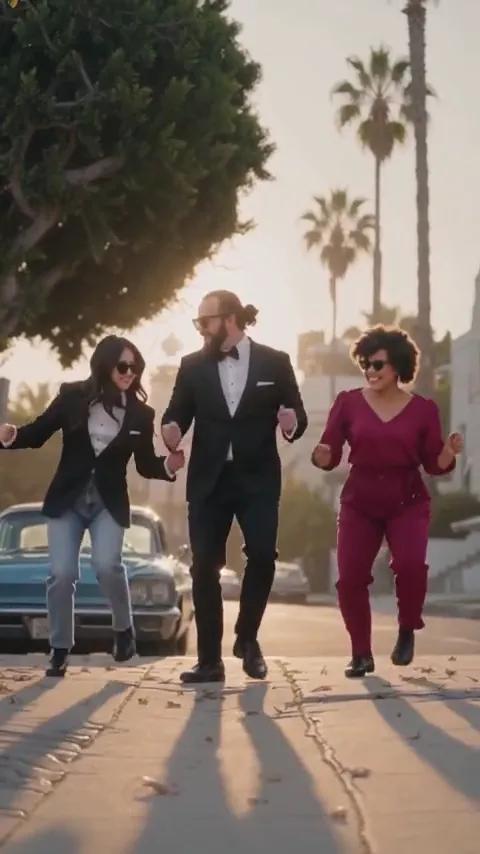
Write down the part you care about most. Is it your face in the lead role, the same movement, or three recognizable friends together? A service can provide one of those without supporting the others. Compare its preview with your goal rather than relying on the name of the effect.
Prepare the cast before uploading to a generator
For a personalized trio, make a small cast list: you in the middle, one friend on the left, another on the right. Check whether those positions refer to the viewer’s left and right. Keep each person in a separate source image so you can change one role without changing everyone.
A portrait-led template needs a readable face. A workflow that follows body movement needs enough visible body information for its input requirements. For a full-body source, leave room around the hands and shoes and include some ground beneath the feet. See our photo preparation guide for framing checks.
Try the center and side-dancer photo previews before leaving the site. Each slot accepts JPG, PNG or WebP up to 10 MB. Photos stay in the browser; an empty side slot stays empty. External generators have their own file limits and casting rules.
Choose a Babydoll Dance AI workflow that fits the job
You want the ready-made scene
Choose a dedicated template whose preview shows the composition you want. Check how many identities it personalizes, what happens to the clothes, and whether supporting dancers are fixed. A template may offer separate cast slots; confirm what its own controls accept rather than assuming our local photo picker submits those roles to a generator.
You want to follow a specific performance
Look for a mode with separate character-image and action-video inputs. Check which person the mode follows when more than one dancer is visible. A trio reference does not establish support for three independently controlled identities.
You want to invent a variation
An image-to-video tool with text instructions can help explore a different setting or outfit. Use it for a dance concept. A prompt alone does not supply the source performer’s body positions or beat timing. Choose this route when some variation is acceptable.
Build your first Babydoll dance video in five steps
Save your goal and reference
Put each input in the intended place
In a template, match portraits to the labeled roles. In a motion workflow, supply the character image and action video separately. If the interface only accepts one face, simplify to one dancer instead of uploading a group image and hoping it assigns the roles.
Check the cost and framing before submitting
Read the current price for the selected mode, along with its duration, aspect ratio and download options. Decide whether the preview contains enough room for the complete move. The 9:16 reference is a useful composition to compare, not a promise of every tool’s output.
Generate one manageable draft
Use a short supported section that includes a full step and weight change. Keep that first attempt simple enough to judge. Avoid changing the background, clothing and choreography together, because you will have several competing reasons for any mismatch.
Keep notes before retrying
Record the input you used and the most visible defect. A note such as “the left shoe slides during the turn” is more useful than “looks wrong.” Fix that issue first, then compare the next render with the same reference.
A starting prompt for an original solo variation
Use this original example only where the selected tool accepts text with an image. It is a planning aid, not a tested preset or the exact trio choreography. When a motion clip supplies the actions, remove conflicting movement instructions.
Animate the person in the supplied image in one steady full-body shot. Keep their appearance and clothing consistent. Show a relaxed two-step with small sideways weight shifts and low arm movements, ending in a still pose. Leave clear floor space around both shoes. Use a vertical frame and a fixed camera. Keep the background unchanged and avoid adding other people.
Review the draft and fix one visible problem
Watch at normal speed first. Then pause at a head turn, a hand gesture and the moment each foot returns to the ground. Judge the entire saved clip, including its last frame.
- The wrong person leads the scene
- Recheck the role labels and supported subject count. If you need several identifiable people, use a workflow that explicitly supports them; clearer wording cannot add a missing role input.
- The face changes as the dancer turns
- Compare the source face with the problem frame. Try a less obstructed photo or a reference with a closer viewing angle. Keep the next attempt otherwise similar so the comparison is useful.
- The steps look unrelated to the reference
- Check whether the action clip was supplied at all. For a text-only interpretation, decide whether the new routine is acceptable or switch to a reference-based method.
- Feet glide or dancers overlap
- Look for cropped shoes or unclear spacing in the inputs. Try a simpler passage with one readable dancer before adding a more complicated cast.
The video troubleshooting guide provides more checks for framing, inputs and saved results. A failed draft does not tell you which setting to change until you identify the actual defect.
Finish the sound and check the exported file
Listen to the rendered clip before adding another track. If it already has audio, decide which track to keep. Align one clear movement with the beat in your editor, then replay the whole sequence to check whether the rest drifts.
Check the publishing app’s current music options and rules for your intended post. A song title in a template does not tell you what audio the download contains or where you can use it. Describe the result honestly as AI-generated, and review the destination platform’s labeling controls before posting.
Export at the quality the workflow actually supports. Reopen the file outside the editor and inspect the face, shoes, crop and sound. Increasing export dimensions alone does not show that the original render contains more detail.
Babydoll Dance AI video FAQ
Can I make a Babydoll Dance AI video from one photo?
A dedicated template may personalize its lead from one portrait. Check its actual preview and input labels: one photo does not mean it can preserve three different people. Motion-reference workflows may need a full-body image as well as a dance clip.
Is Babydoll Dance the same as an AI baby dance?
No. This guide uses Babydoll Dance for the Jamie Miller two-step reference. Compare the example clip before selecting an effect with a similar name.
Is there a free Babydoll Dance AI generator?
Watching our reference and previewing portraits are free. We do not promise free Babydoll generation from an external service. Check the current render price, watermark and download options in the tool you choose.
Will a Babydoll prompt reproduce the exact steps?
A written prompt describes a dance idea without supplying the source performance. If the order and timing of the steps matter, choose a workflow that accepts a usable motion reference, then compare the result with that clip.
Start with a cast and a clear target
A useful Babydoll Dance AI video begins with knowing what needs to stay consistent. Choose the people, decide whether the choreography must match, and inspect one draft before committing to more renders.
Watch the Babydoll Dance reference when you are ready to compare your plan with the scene.