
BURNING BRIDGES · FORMATION VIDEO GUIDE
How to Make a STORM II AI Video
To make a STORM II AI video, plan the still character and the moving crowd separately. Prepare a clear portrait, compose a readable starting scene, then test one crowd action in a compatible image-to-video tool. This guide gives you an original prompt and a practical way to review the first draft.
By Burning Bridges AI Video · Updated
1. Choose your STORM II AI video workflow
Decide whether you want to explore a formation concept or match a particular movement. For a custom scene, look for a tool that accepts a starting image and motion instructions. If exact timing matters, check whether the tool accepts a permitted motion reference. Do not assume a text box alone gives you control over each person in the crowd.
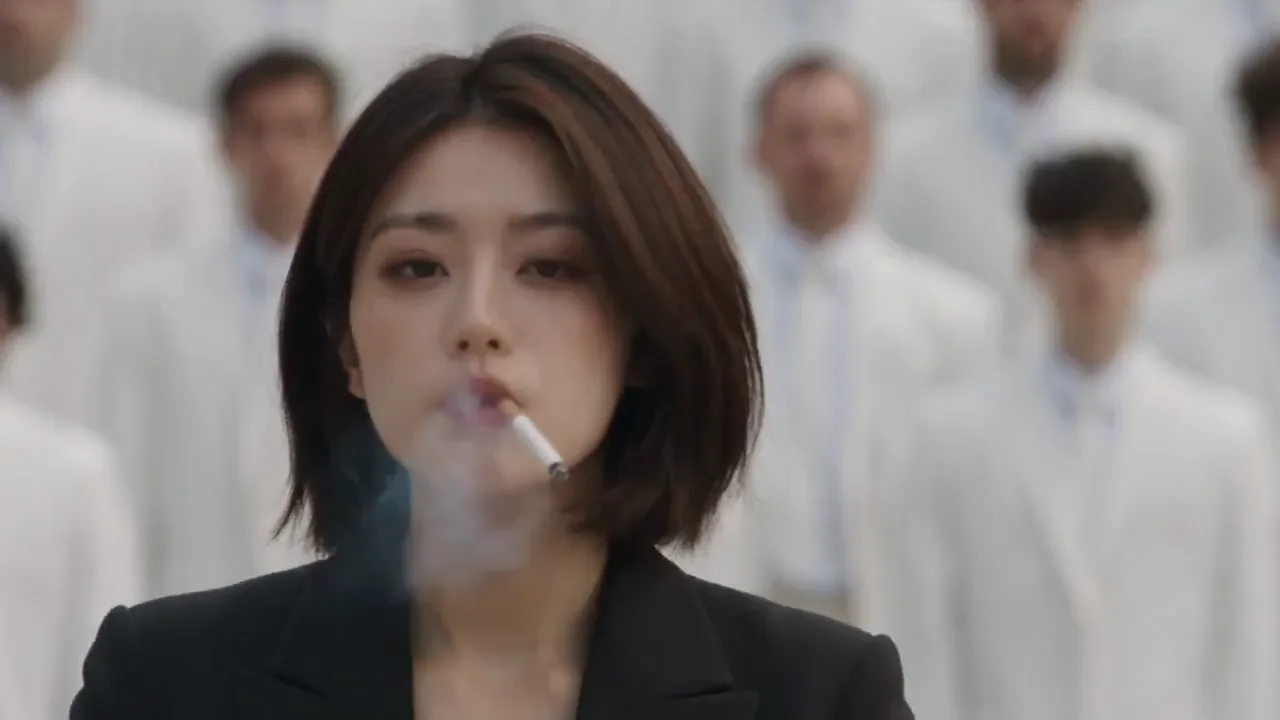
Before rendering, check the accepted image format, duration choices, output shape, credit estimate and export conditions in the tool you choose. Use its shortest useful draft setting while you settle the composition. This tutorial is a planning workflow; the prompt below has not been benchmarked against a particular model.
2. Prepare the portrait and the crowd scene
Choose one well-lit face with visible eyes and minimal blur. Keep the original photo rather than a screenshot of a screenshot. A portrait establishes who the lead is; it may not establish the surrounding scene. If your tool animates a starting frame, prepare that frame with the crowd already arranged.
Place the lead before adding detail
Start with a centered subject and enough space above the head and below the shoulders. Leave room around the silhouette so nearby figures do not overlap the face or arms.
Choose a small, readable formation
For an initial draft, try a few rows with visible gaps. Use the same wardrobe for the crowd and a contrasting outfit for the lead. Inspect this image at phone size before asking it to move.
Match the intended frame
If the destination needs a vertical clip, compose vertically from the beginning. Keep the lead away from the bottom edge where captions or playback controls may appear. Use the output dimensions your chosen tool actually supports.
Avoid asking the first render to fix a flawed face, invent a large crowd and perform complex choreography at the same time. Resolve the still image first, then work on movement.
3. Try this original STORM II AI video prompt
Use the following as a starting draft after preparing your scene. It assigns separate roles to the lead, the formation and the camera. Replace the wardrobe and setting with your own choices; keep the first motion test simple.
A vertical cinematic shot based on the supplied starting image. Preserve the central person's face, clothing and position.

The lead holds a relaxed standing pose and looks toward the camera throughout the shot. Their head, hands and shoulders remain still.

Behind the lead, three evenly spaced rows of people in matching pale jackets perform one small synchronized shoulder turn, then settle into their starting pose. Keep the gaps between people visible. No one steps in front of the lead.

Use a fixed camera, soft side lighting and a plain courtyard background. Maintain consistent faces, separate limbs and continuous motion. Avoid duplicate leads, overlapping bodies, abrupt cuts and changes of wardrobe.
For a second draft, change only one variable. Try a different crowd outfit while keeping the pose and camera fixed, or keep the scene and test a gentle camera push. Comparing two drafts is much easier when you know which instruction changed.
A shorter motion-only version
Keep the central person still. Only the background formation makes one synchronized shoulder turn and returns to rest. Preserve row spacing, clothing and facial identity. Fixed camera; no cuts.
If the tool provides a separate negative-prompt field, follow its own input instructions. There is no need to paste the same exclusions into every field. These prompts describe an intended result, not a guarantee of precise choreography.
4. Fix the first draft before adding more motion
Watch the draft at normal speed, then pause near the beginning, middle and end. Inspect the lead first, the nearest row second and the background last. Note the first visible failure rather than rewriting the whole prompt immediately.
- The lead moves with everyone else
- Remove words that assign an action to the entire cast. State that only the background people move. Try the motion-only prompt with a fixed camera to see whether the separation improves.
- The face changes during the shot
- Check the starting frame and reference image for conflicting features. Reduce head turns and camera movement. If identity controls exist in your chosen tool, review their documented use before changing them.
- The rows merge into a mass
- Return to the still composition. Reduce the number of figures and widen the gaps. If individual bodies cannot be distinguished in the image, the motion prompt has a weak starting point.
- Front and back rows move at different times
- Limit the test to one small action and fewer rows. Avoid combining walking, turning, bowing and a camera orbit in the same draft. Exact synchronization may still require a different workflow.
- The camera hides the formation
- Remove the push or orbit and test a locked shot. Once the movement works, add a small camera change and check whether the lead and outer rows remain inside the frame.
Save the prompt and starting image for each useful draft. If repeated attempts fail at the same requirement, reassess the tool or simplify the idea before spending more credits.
5. Check audio, framing and the final file
Listen to the exported file instead of assuming the reference soundtrack is included. Decide whether you need music, movement sounds or a silent clip. Use audio permitted for your intended post and remove duplicate tracks when assembling the edit.
Review the full clip on a phone. Check the face at both ends, the edges of the formation, any added captions and the transition into the final pose. Confirm the downloaded file has the dimensions and watermark treatment you selected. Keep the original export so later edits do not require downloading and recompressing a social-media copy.
STORM II AI video FAQ
Can I make a STORM II AI video from one photo?
A portrait can be the identity reference, but a custom workflow may also need a starting image containing the lead and crowd. Check what your chosen tool accepts before preparing files.
Which prompt keeps the lead still?
Assign motion separately: describe the lead as holding one pose, then give the crowd one action. Treat the result as a draft to inspect; text instructions do not guarantee perfect separation.
Why do the crowd members merge together?
Try fewer rows, clearer gaps and a simpler movement. Check that the starting image already separates individual figures before spending another render on animation.
Can I use this prompt in any AI video maker?
Use it as a planning draft. Tools differ in reference-image handling, motion controls and prompt limits, so adapt the wording and check a short result first.
Choose one formation and test it
Return to the STORM II AI video examples to compare the lead placement and crowd spacing. Pick one composition, prepare a clean starting frame and review one movement before building a longer clip.
For the Burning Bridges party-video template supported on this site, check the available plans.
View Burning Bridges plans →