
BURNING BRIDGES · COSTUME VIDEO GUIDE
How to Make a Halloween Costume AI Video
Plan one outfit change, choose a clear starting photo and review the reveal from beginning to end. Start with the short route below; the detailed steps and prompt follow.
By Burning Bridges AI Video · Updated
How do I start a Halloween Costume video?
Use one starting outfit, one reveal gesture and one final costume. The short route below links the reference, photo area and checks to make before continuing.
Choose your starting photo → · Check costs and download terms →
Four steps to get started
- Choose the reveal. Compare the casual-to-witch reference. Pick one trigger, such as a hand gesture or turn, and one ending costume. Watch the references.
- Prepare the starting photo. Use one person with visible eyes and an outfit you can inspect. Leave room for the hands, shoulders and hat. Open the photo area.
- Review the creation details. Check the selected scene, photo requirements, output and credit details before confirming. Review current plans.
- Inspect and save. Watch the face, hands and costume through the change. Check the complete saved file and the audio you plan to publish.
Check the face before and after the reveal, the fingers during the gesture, and the hat and clothing edges in the final pose.
Choose the right Halloween Costume AI workflow
First decide whether you want a costume picture, a specific transformation or an original scene. A page with a Halloween label may offer only a still image. Look for a playable example and confirm that the selected mode exports video.
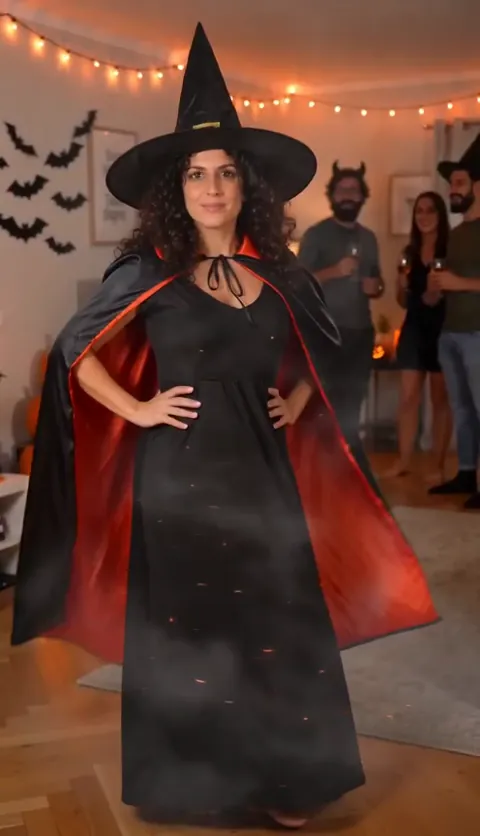
A template for a specific reveal
Use a dedicated template when its preview already shows the outfit and movement you want. Check whether the costume is fixed or selectable. Do not assume a witch template can produce a vampire, a superhero or several people just because you can upload a different photo.
A prompt for your own variation
Use an image-to-video mode that accepts text when you want to explore a different reveal. The prompt below describes an original witch transformation. It is a starting idea, not a tested preset or a promise to reproduce the reference.
Prepare a photo that gives the costume room
Choose one person facing the camera in even light, with their face unobstructed. For a full outfit reveal, leave space above the head, around the hands and below the shoes. That makes it easier to judge whether the final hat, cape and pose fit the frame.
A blurry face or cropped hands already leave missing information in the source. Runway's image-to-video guidance warns that source-image artifacts can become more visible during animation. Start with a cleaner photo instead of relying on a longer prompt to repair it.
You can use our local photo preview to inspect a JPG, PNG or WebP up to 10 MB. Selecting it here does not upload it. Your chosen generator has separate file requirements; check those before submitting. See the photo guide for more framing checks.
How to make a Halloween costume AI video in five steps
Choose one reveal and one final outfit
Write down the starting look, the gesture that triggers the change and the ending costume. For example: casual clothes, one turn, then a witch outfit. Keep several costume changes or a moving crowd out of the first attempt so there is one clear result to assess.
Open a compatible mode and add your photo
In a template tool, open the effect whose preview matches your plan and follow its input labels. In a prompt-based tool, select image-to-video and supply the photo as the visual input. Use your own photo or an image you have permission to use.
Check the frame, output and price
Choose portrait framing if you want a phone-shaped clip; the examples on our page are vertical. Review the selected duration, resolution, credit charge and download conditions in that tool. These settings and costs differ by service, so a reference clip cannot establish what your purchase includes.
Generate one draft
If the tool accepts text, describe the gesture, costume change and ending pose. For a fixed template, use its prescribed controls. Submit only after checking the selected settings, then wait for that task to finish before starting duplicate attempts.
Review before trying again
Watch at normal speed, then pause at the transformation. Check the face, fingers, hat, cape and feet. Save a note about the biggest problem and change one input or instruction for the next draft. Keep a retry budget; a visually disappointing result may still be a completed, charged generation.
A Halloween costume AI video prompt to adapt
Runway recommends that image-to-video text concentrate on movement, while allowing visual detail for a transformation. The original prompt below follows that approach. Paste it only into a tool that accepts image-plus-text video instructions, and adjust it to the mode you selected.
A steady full-body shot of the person in the input photo. The person makes a small hand gesture and turns once as warm orange sparks circle their outfit. During the turn, their clothes transform into a black witch dress with a pointed hat and a flowing cape. They finish facing the camera and hold the final pose as the sparks fade. Keep the face recognizable, the person centered and the full costume inside the frame. One continuous shot with a still camera.
Treat the wording as a request, not a guarantee of identity or motion. If the transformation is too busy, try a smaller gesture and a simpler outfit reveal. Add extra scenery only after the subject and costume read clearly.
What to change when the costume reveal looks wrong
These are practical troubleshooting options, not guaranteed fixes. Compare the same moment in each draft so you can tell whether a change helped.
- The face changes during the spin
- Try a sharper, front-facing source and a smaller turn. Pause on the final face before accepting the result.
- The hat, dress or cape appears too early
- Make the order explicit: starting outfit, gesture, transformation, final pose. If the template fixes that timing, use a different effect or accept its sequence.
- The hands or cape merge into the body
- Inspect whether those areas are readable in the input. Try a less crowded pose and fewer simultaneous movements.
- The costume is cropped
- Compare the input crop with the output frame. Leave space around the head and feet, and confirm that the selected mode supports the composition you need.
- The result is a still image
- Check the mode and exported file. A costume photo editor does not become a video generator because you asked for a spin in the prompt.
Check the sound and saved video before posting
Play the downloaded file outside the generator. Listen for any included sound before adding another track, and check that the costume reveal remains visible in the final crop. Leave the ending pose on screen long enough for a viewer to see the change.
For TikTok, Reels or Shorts, inspect the post preview before publishing. Keep important details away from the interface overlays. Check the destination's current audio and AI-labeling options for your post; the soundtrack in a example does not establish what your download contains.
Halloween Costume AI video FAQ
How do I make a Halloween costume AI video from one photo?
Choose a generator that supports a costume-reveal template or image-to-video instructions. Upload one clear photo, check the output settings and price, then generate a draft. Review the face, costume and transition before downloading.
Which Halloween Costume AI maker should I choose?
Choose by the result you want: a fixed costume template for its specific scene, or a prompt-based tool for an original variation. Check the actual preview, supported inputs, export options and current cost before paying.
Can I make a Halloween costume AI video for free?
Watching our examples and previewing a photo are free. Video generation on external services has its own pricing. Check whether a free offer includes a downloadable video and whether watermarks or other limits apply.
Do I need a full-body photo?
A full-body image is useful when the reveal includes a dress, cape and shoes. Follow the chosen template requirements. A close-up cannot show the original full outfit, so use it only when that framing fits your intended result.
Will the AI keep my face exactly the same?
Identity consistency is not guaranteed. Inspect the face before, during and after the transformation. If the result changes noticeably, try a clearer source image or a simpler motion before spending credits on another elaborate scene.
Is this the same as a Halloween costume photo filter?
A photo filter produces a still look, while a costume video needs movement and a transition over time. Check that the selected mode exports video before you upload or pay.
Start with one clear costume change
A useful Halloween costume AI video plan has an identifiable person, a readable transition and an ending outfit that stays in frame. Compare the Halloween video examples, choose a compatible workflow and review one draft before spending more.
Explore how to make a Babydoll Dance AI video, then choose clear photos for your video.